
How to create llms.txt for WordPress and beyond
This llms.txt WordPress tutorial shows two reliable paths: create a file manually or generate it automatically with JumpsuitAI – llms.txt + Markdown Endpoints. Use this guide to choose your approach, avoid common pitfalls, and keep your AI‑readable content up to date.
Prefer to automate from day one? Explore the features of JumpsuitAI and see how it generates llms.txt and Markdown files for you.
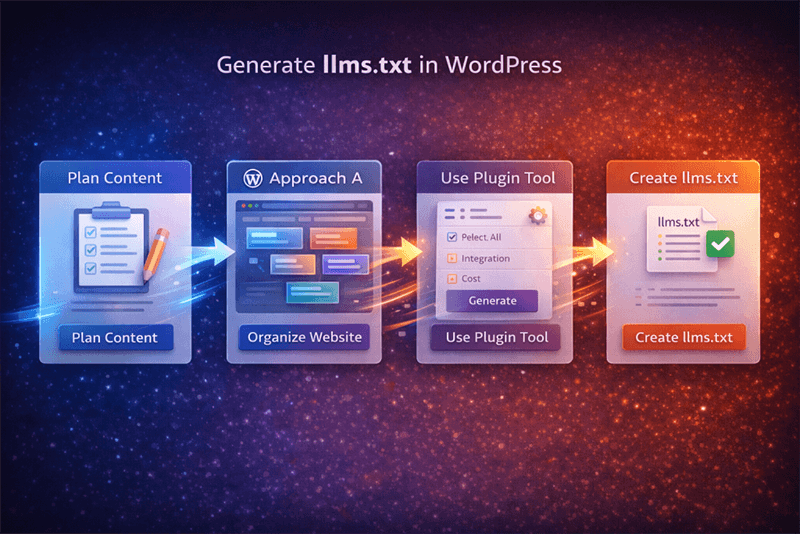
Before you start: goals and scope
Align on what your llms.txt should convey to AI systems: what content belongs, how it should be grouped, and how often you intend to refresh it. JumpsuitAI – llms.txt + Markdown Endpoints focuses on automation, customizable introductions, custom groups, bulk management, advanced content organization, and Markdown exports—all designed to reduce manual effort.
- Decide which sections of your site deserve inclusion.
- Outline logical content groups (for example, products, docs, or posts).
- Note your publishing cadence so you can plan updates or automate them.
Tip: If you want a no‑code workflow, the plugin approach below is fastest. If you need full manual control, start with Method 1.
Method 1: Create llms.txt manually
This method is useful if you want to start simple or test quickly before adopting automation.

Step 1 — Plan the structure
Document the groups or sections you plan to include and the order in which they should appear. Keep it readable and consistent.
Step 2 — Create the file
- Open a plain‑text editor.
- Create a new file named llms.txt.
- Add your organized content summary and any introductory notes you want AI systems to read.
Note: The exact directive format and syntax for llms.txt are not provided in these files. If you use a specific standard, supply the required fields and formatting rules so they can be implemented accurately.
Step 3 — Upload and publish
Confirm the correct public location for llms.txt with your platform or development team (for example, whether it belongs at the web root or another accessible path). Upload the file, then verify that the URL is publicly reachable and returns the expected text.
Step 4 — Test and iterate
- Confirm the file is reachable and correctly formatted (according to your chosen standard).
- When your content changes, update llms.txt so it stays aligned with the site.
- Keep an internal changelog so future updates remain consistent.
Method 2: Generate llms.txt with a plugin
If you want speed, consistency, and bulk updates, use JumpsuitAI.

Install llms.txt plugin
- Acquire the digital download via the licensing provider and add it to your WordPress site.
- Activate the plugin. If you are migrating from the free JumpsuitAI plugin, keep Pro active to unlock custom groups, bulk management, and customizable introductions.
Configure content groups and introductions
- Create custom groups that mirror your site’s information architecture.
- Add a customizable introduction that sets context for AI systems.
- Use bulk management to organize many items quickly.
Note: Specific field names and UI labels are not provided in these files. If you have prescribed labels or settings to match, please supply them.
Generate and publish llms.txt
- Run the generator to produce a fresh llms.txt based on your current structure.
- Review the output for accuracy and completeness.
- Publish the file via the plugin’s workflow. If your environment requires a specific path, confirm it with your team before going live.
Markdown export steps
JumpsuitAI also generates Markdown files to help AI systems understand your content in a structured format. Use the plugin’s export capability to produce Markdown versions that mirror your groups and introductions, then store or share them as needed. If you require a particular Markdown schema or repository destination, please provide the details.
llms.txt file example
The following is a placeholder template to show structure only. Replace the placeholders with your canonical format and content once your standard is confirmed.
If you’d like a ready‑to‑use llms.txt aligned to your taxonomy and tone, the plugin can generate it once settings are provided.
```
# llms.txt — Example skeleton (placeholders)
INTRO: VALUE NEEDED FROM CLIENT

GROUP 1 TITLE: VALUE NEEDED FROM CLIENT
GROUP 1 CONTENT: VALUE NEEDED FROM CLIENT

GROUP 2 TITLE: VALUE NEEDED FROM CLIENT
GROUP 2 CONTENT: VALUE NEEDED FROM CLIENT

UPDATE CADENCE: VALUE NEEDED FROM CLIENT
CONTACT / SOURCE: VALUE NEEDED FROM CLIENT
```
llms.txt vs robots.txt
JumpsuitAI – llms.txt + Markdown Endpoints is built to help AI systems understand a website’s content by generating llms.txt and Markdown files. robots.txt is a different control file used for crawler access policies. For authoritative guidance on how your organization differentiates these files and where each should live, confirm your internal standards and platform requirements.

How to add llms.txt in WordPress
You have two options:
- Plugin‑based (recommended): Install and activate JumpsuitAI – llms.txt + Markdown Endpoints, configure your groups and introduction, generate the file, and publish through the plugin. See Pricing for licenses and Features for capabilities.
- Manual: Create the llms.txt file locally and upload it to the confirmed canonical path for your site. If you are unsure of the correct path, request confirmation from your developer or hosting provider.
Verification and maintenance
- Accessibility: Confirm the live URL is publicly accessible and returns the expected content.
- Accuracy: Spot‑check key sections after each major site update.
- Cadence: Update llms.txt whenever content changes meaningfully, or enable automation so updates happen as part of your regular publishing process.
- Governance: Record who owns updates (author, editor, or developer) and how approvals work.
Frequently asked questions
Do I need coding skills to create llms.txt?
No coding is required to use JumpsuitAI. Manual creation uses a plain‑text editor, but your team must supply the exact llms.txt syntax if a standard is required.
Where do I upload the file?
The canonical upload path for llms.txt depends on your platform. Confirm the correct public location (often the web root) with your host or developer.
How often should I update it?
Update when content meaningfully changes or on a set schedule that aligns with governance. JumpsuitAI streamlines bulk updates.
Can search engines read llms.txt?
Support varies by AI systems and search platforms. Confirm the targets and formatting your SEO and platform teams require.
Next steps and resources
- Prefer automation and structure? Review Features and choose a plan on Pricing.
- Comparing tools? See the head‑to‑head llms.txt plugin comparison.
- New here? Start at our Home page to understand the llms.txt generator approach.
Ready to streamline your workflow? Install JumpsuitAI – llms.txt + Markdown Endpoints and let it handle the heavy lifting while you focus on publishing.